
Let’s get you
connected.
A short setup guide, a few practical checks, and a real contact when you need help.
Two phones.
One simple setup.
Get the app on both phones
Download Vocari from Google Play for compatible Android phones. The completed iPhone version supports Android–iPhone and iPhone–iPhone conversations and is awaiting Apple review before public App Store availability. iPhone information.
Connect each person’s headset
Pair a compatible Bluetooth headset or connect a compatible wired headset to each phone. It must support calling with both its microphone and earpiece. Check these on a normal call first, then turn on Wi-Fi and Bluetooth.
Open Vocari and allow the required permissions
Review the app’s terms and privacy policy. Allow microphone, Bluetooth/nearby-device and local-network access when requested. The camera is used for QR scanning; available prompts vary by platform.
Choose Host on one phone, Join on the other
On the first phone: Host → Show QR Code. On the second: Join → Scan QR Code. Follow any operating-system connection prompt. Alternatively, use Show Join Code and Enter Join Code.
Check both directions, then talk
Wait for the connection, speak from each headset, and check that the other person hears you. Keep the phones nearby. Use End to finish; start a fresh Host session for a new conversation.
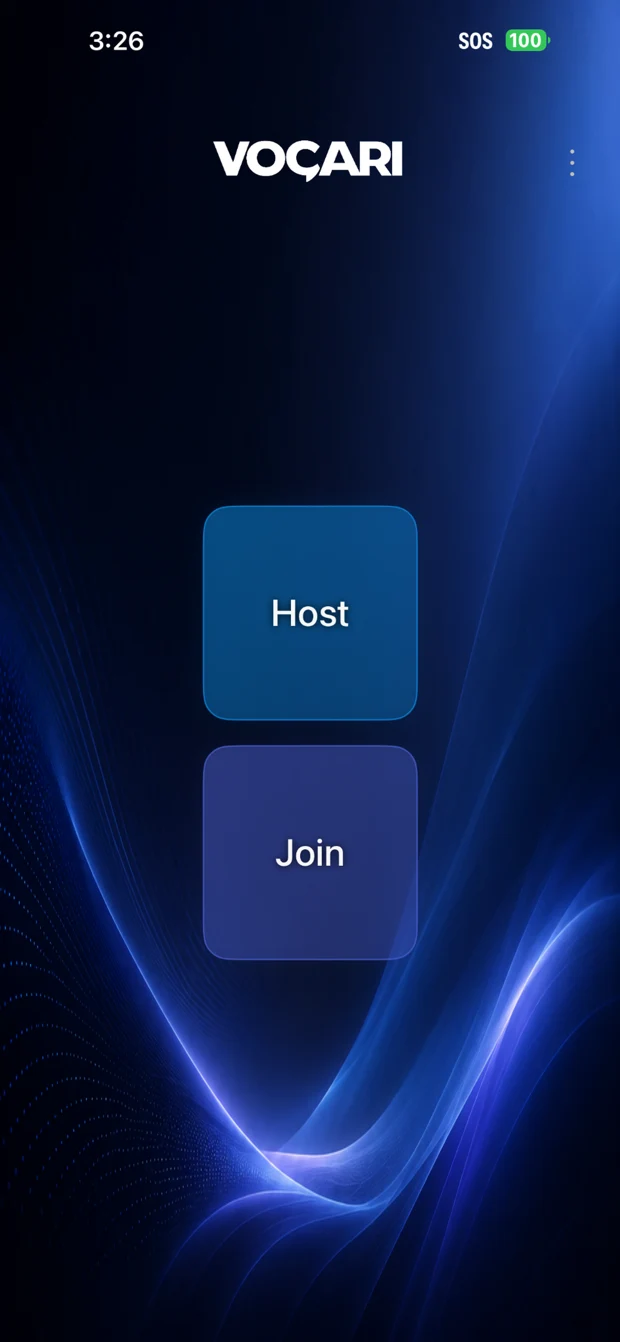
Controls may differ by installed version.
Compatible means
more than Bluetooth.
For Bluetooth headsets, Vocari uses the Hands-Free Profile (HFP) for simultaneous microphone and playback. Compatible wired personal-audio routes are supported where the phone/platform/headset combination provides microphone input and playback. A product that only plays music is not enough.
Explore the equipment guide ↗What you need today
- Two compatible phones with Vocari: Android–Android, Android–iPhone or iPhone–iPhone. Check the store for device eligibility. The iPhone app is awaiting Apple review.
- One compatible Bluetooth or wired headset with microphone input and playback per person.
- Wi-Fi and Bluetooth switched on, required permissions enabled, and phones within usable local range. No Wi-Fi router or internet access is needed.
The phones connect directly. You do not need a router, even one without internet service, and you do not need to join an existing Wi-Fi network. Groups and internet calls are not current features.
A clear next step.
Start with the headset, then the phone connection. A successful music test does not prove the headset microphone works.
I can’t hear the other person.
The QR code or Join Code won’t connect.
The conversation has a delay or drops out.
My headset disconnected. What now?
What are the live transcript bubbles?
Do I need a Wi-Fi router?
How private is a conversation?
Can I use Vocari at work or while exercising?
Vocari for iPhone
The iPhone app is built, supports cross-platform conversations, and is awaiting Apple review before public App Store availability. For questions about the iPhone version, contact Vocari. Android is available on Google Play.
Still need a hand?
Tell us both phone models, operating-system and app versions, the exact headset models, and whether you used QR or Join Code. Describe what each person heard and what happened.
Email Vocari support ↗feedback@scalarlabs.ai · Please don’t include passwords, active join credentials or private conversation transcripts.